Tuesday, 1 October 2013


How to Code/Compile and Run C/C++ in Windows 7 & Windows 


Posted by 
Kartik Sawarkar


C language is one of the best programming language to start your coding experience, but it’s scary to use Turbo C/C++ on Window 7 onwards, learn how to start coding compiling C/C++ program in Windows 7 or Windows 8 without Turbo C++.

Hi everyone, welcome back! Today I am about to help you how to get started with your C/C++ programming in Windows 7/Windows 8 operating system. Windows 7 doesn’t support turbo C++ compiler as XP do, sometime when it do, it’s painful how to write code in small Windowed interface where barely anything visible on normal screen.
How to Code and Compile C/C++ program in Windows 7 or Windows 8

All you need to start coding is to download Codeblock, free IDE for GCC Compiler for Windows XP/vista/7 and Windows 8, along with this; you can use this on Various Linux distribution as well as on Apple’s Mac OS.
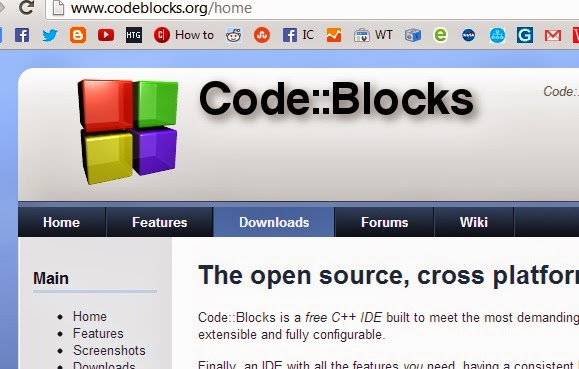


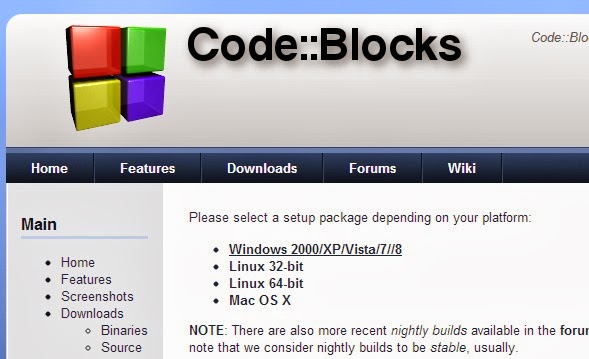
Visit Codebloack.com and select Download tab and click on Download binary release, choose operating system as Windows and select the latest version available for download


Once you downloaded and installed on your system, run the Codeblock on it.

Start with C/C++ project in Windows 7/Windows 8 with codeblock
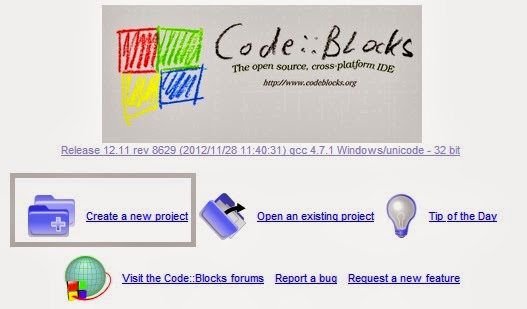
Once you’ve installed, and Run, on the very first screen, you need to select the compiler select GNU/GCC as default compiler. Now select the New Project.


On the next Screen, select the console application and click next.
Select the language you want, C/C++ and click next.

Selecting the Compiler GNU/GCC
From the next screen let the compiler selected GNU/GCC and click next,
Name your project and Select the location to save it,
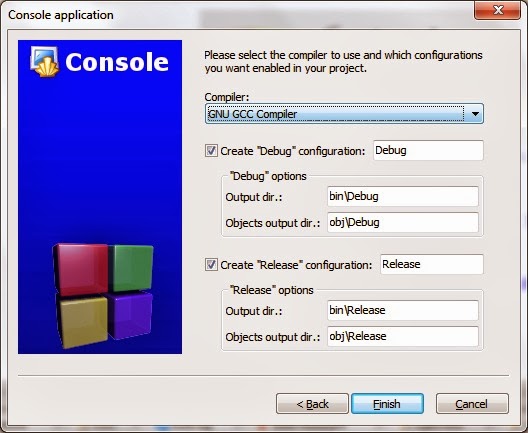


Once you click next, and Finish it.

There you’ll notice a left side navigation bar having your project name, ‘Hello_world’ in my example image,

Click on source and there you’ll find a file main, double click on it and on right, you’ll see a sample C/C++ program for hello world.
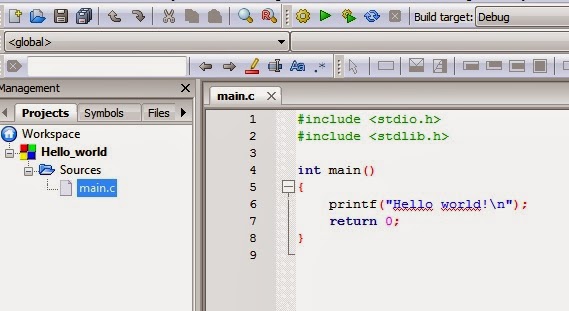


On the toolbar, you may find three options,

1. Built: For compiling and making the executing file.
2. Run: Run the existing build C/C++ program.
3. Build and Run: This is time saver, on new coded program, click build and run and there you go.

So once you have sample program, select the Build and run and you can notice a command window showing the output of your Hello world program.
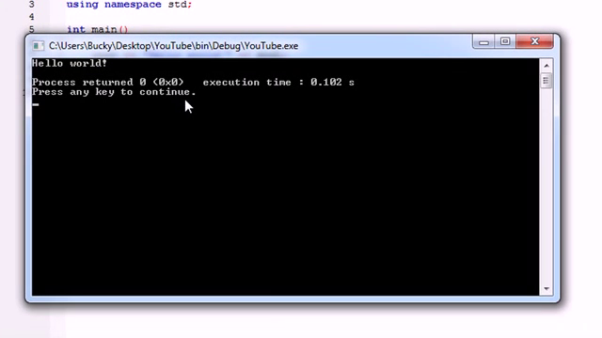


Similarly you can make the changes or create new file, write source code, built it and run, that’s all.


Thursday, 6 December 2012

Top 10 Ways To Unblock The Websites

                         Top 10 Ways To Unblock The Websites


1. Use web proxies.


Many free online services allow you to access blocked websites through a proxy server. A proxy server is an intermediary between the user and the server where the request was send. Here is a list with the most known resources of web proxies: Proxy.org, HideMyAss.com, Kortaz.com, KProxy.com and Anonymouse.org

2. Use VPN connections.


A VPN (Virtual Private Network) is like a tunnel over the public network. The advantage of using VPNs over web proxies is that VPNs are more secure because they are using advanced encryption and allow you to access all the applications (mail, chat, browser etc) in complete anonymity and not only the web sites. The most known free VPN is Hotspot Shield.

3. Use Hide IP software.


These are easy to use and even if the main functionality is to hide IP address and unblock websites, there are applications that can provide you more than that – like cleaning online tracks, testing proxies, manually adding proxy etc. Usually if you choose a free software, then this will provide you a minimal number of proxies and no other features than hiding IP address. Not My IP is one of the latest free hide IP address software that has already gained a large market followed by the old UltraSurf which is already very popular. Regarding paid applications that provide more features and have a complex structure, my recommendations are IP Privacy and Hide My IP.

4. Use Toolbars and Firefox add-ons.


Toolbars and Firefox add-ons are in fact software applications that work on specific browsers and with a simple click you can enable or disable online anonymity.

5. Use translation services.


Introduce the link of the blocked website in the translation field (for example in Google Translator) and choose a random language to translate from because translation from English to English is not supported.

6. Use Google cache.


In the Google search field type cache: before the URL of the blocked website. For example type cache:http://www.domain.com

7. Use Internet Archive.


Internet Archive allows you to view blocked websites through the Wayback Machine. This will retrieve all pages of a specific website indifferent if the website is blocked.

8. Use Web2Mail service.


Web2Mail it is a free email service that can sent to your email address specific web pages. You sign up for an account and get set to receive specific websites by email.


9. Change the http of an URL into https


This is the easiest way to access blocked websites. Of course, this might not work every time but you have many other solutions also. This is the fastest one.

10. Use IP address of the website instead of URL.


To use the IP address of a website instead of URL, you must first find its IP. To do this open command prompt and type: “ping domain.com”.


you should try once.........